
Dashboard Widgets
PELS ships five small widgets you can pin to a Homey dashboard. Most show status at a glance and refresh on their own; two are interactive — New smart task lets you create a task and Held-back devices lets you release one — straight from the dashboard.
Add any widget from your Homey dashboard's widget picker, then place it where you want.
Available power
Answers "how much room do I have right now?"
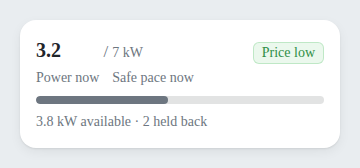
The widget shows:
- Power now against Safe pace now, with a coloured bar that turns warning as you approach the safe pace and red when the current capacity period is on pace to exceed the hard cap.
- Available power remaining in the current capacity period (the hour, or the quarter on the 15-minute period).
- The number of devices PELS is holding back, when any are.
- A price-level chip when prices are cheap or expensive (hidden when prices are normal).
It refreshes about every 10 seconds. If no new reading has arrived recently — for example after a restart, during a meter outage, in a quiet stretch between Flow reports on the Flow power source, or while the reading seems stuck on one value — the widget keeps showing the last known reading (dimmed) rather than blanking, but it stops asserting the present: the coloured bar and state label go neutral and the bottom line reads No recent power reading instead of available power and held-back counts, so figures from before the gap are never presented as live. Once the meter has been silent, or stuck on one value, long enough for PELS to limit devices on that account (about ten minutes), the tile stops showing the old figures altogether and reads No new power readings. The next new reading returns it to normal on its own.
Budget and Price
Answers "where will today land?"
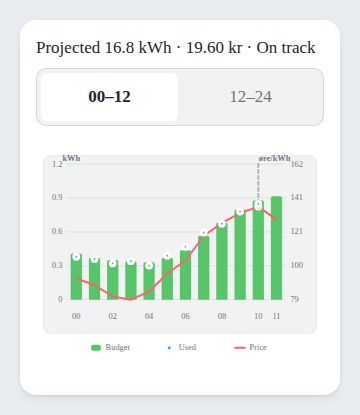
The widget shows today's hourly plan as a chart — managed and background usage against the daily budget — with the cheaper and more expensive hours marked, a now-line, and a projected end-of-day total in kWh and money. Use it to see at a glance whether the day is tracking to plan and which hours are the cheap ones.
Smart tasks
Answers "are my smart tasks on track?"
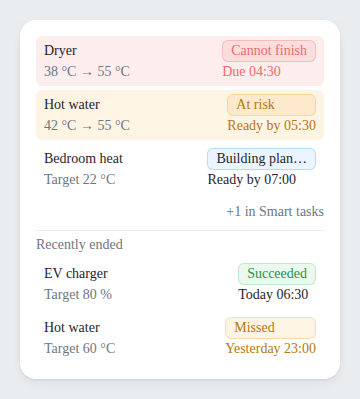
The widget lists up to three active Smart tasks, ranked by how much attention they need: tasks PELS expects to miss first, then at-risk, then pending, then on-track. Satisfied tasks drop off automatically.
Each row shows:
- Device name and the status chip (for example Cannot finish, At risk, On track, or Unplugged).
- The current value moving toward the target (for example
19 °C → 21 °C), or just the target if the device has not reported yet. - The Ready by time the task is aiming for.
If you have more than three active Smart tasks, a small +N in Smart tasks line appears at the bottom — the full list lives in the Smart tasks tab inside PELS.
Tap a task to see its progress
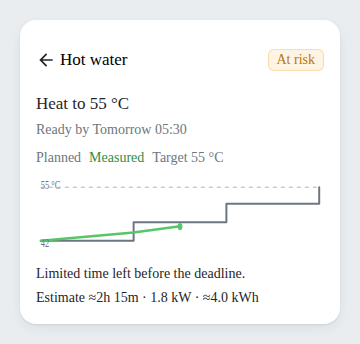
Tap any row to open a compact progress trajectory: the planned line (where PELS expects the device to be heading toward its target) overlaid with the measured line (where it actually is so far), against a dashed target reference, with the hours PELS scheduled shaded behind them. A colour-coded legend names each line and the target value, so you can see at a glance whether a task is keeping up with its plan or falling behind.
Recently ended tasks
Below the active list, a Recently ended section shows tasks that finished in the last 24 hours — whether they reached their target, missed it, or were abandoned — each with an outcome chip and the time it ended. Tap one to see how the run actually played out against its plan.
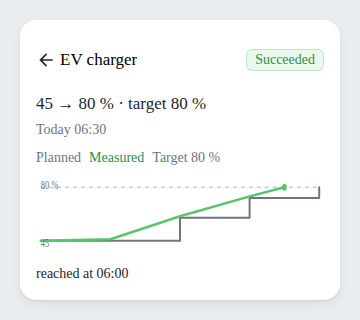
The widget refreshes about every 60 seconds.
New smart task
Answers "get this device ready by a time — without building a Flow."
An interactive widget that creates a Smart task in a few taps: pick an eligible device (thermostat, water heater, or EV charger), set the goal and a Ready by time, then preview and confirm. The preview shows the hours PELS would pick, the estimated cost, and a price curve with the chosen hours highlighted. An optional Extra permissions section lets a task go over the daily budget or limit lower-priority devices — both still stay within the hard cap. (A third permission — pause lower-priority devices, which reserves power so a task can start sooner — is available from Flow.)
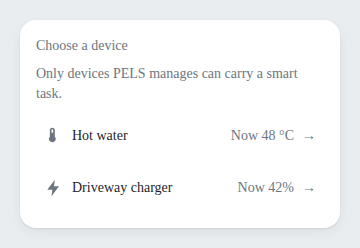 Step 1 — pick an eligible device.
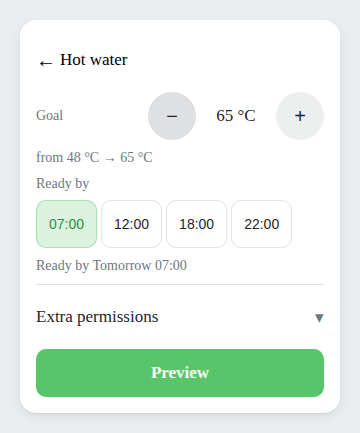 Step 2 — set the goal and a Ready by time (with optional Extra permissions).
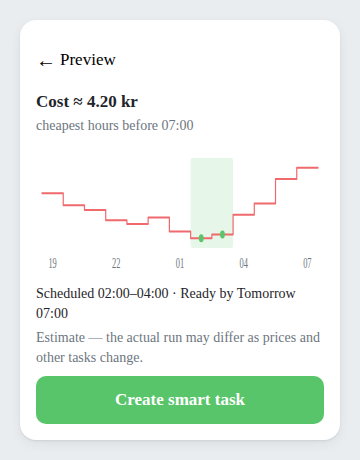 Step 3 — preview the cost and chosen hours, then confirm.
The preview is honest about whether the task can be created:
- Cannot finish means the widget blocks creation for that ready-by time.
- At risk means creation is allowed, but the task may need most of the available window.
- Satisfied means the device already meets the goal.
- If PELS cannot preview yet, the widget says which input is missing where possible, such as prices, a current reading, or price-aware planning.
This is the dashboard equivalent of the Add charging task / Add heating task Flow cards; see Smart Tasks for how a task behaves once it exists.
Held-back devices
Answers "why isn't this running — and can I let it now?"
The widget lists devices PELS is currently holding back (paused or limited), and how long each has waited. Tap Let it run now on any of them to create a short Smart task that gives the device leeway on today's budget and lets it take room from lower-priority devices. Your hard cap is never raised: the rescue only clears room underneath it, so a house already pressed against the cap may still make the device wait.
The one row without the button is a device that already has its own Smart task — that task is what will bring it back, and the row says so.
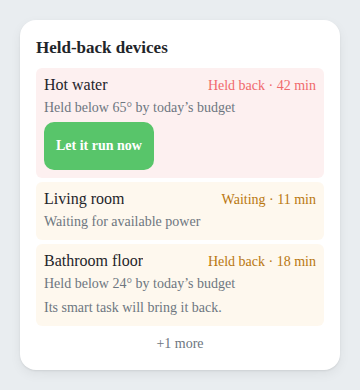 Step 1 — the held-back list. Every held-back device offers Let it run now.
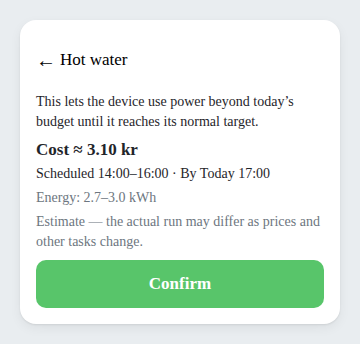 Step 2 — confirm the bounded, budget-exempt run.
When to use which
- Available power — a constant read on capacity pressure when you run heavy loads (an EV charger, a sauna, a wallbox heater).
- Budget and Price — to see where today's energy and cost will land, and which hours are cheapest.
- Smart tasks — when you depend on smart-task deadlines; the widget turns red before you'd otherwise notice a miss.
- New smart task — to set a one-off ready-by goal without opening the app or building a Flow.
- Held-back devices — to understand why something is not running right now, and optionally let one device run now.
All widgets read from the same data PELS already maintains for the app itself, so adding them costs nothing in extra polling or device traffic.