
Smart Tasks
Smart tasks tell PELS that one device should reach a target by a ready-by time.
PELS picks the best hours before the ready-by time — the cheapest hours when prices are available — and lines them up against the device priority, daily budget, power-limit control, and hard cap settings already configured. The task lands on time, on the right hours, without anyone watching prices.
What Smart Tasks Are For
Use a Smart task when the timing matters for one device:
- Charge an EV to a target battery percentage by 07:00.
- Heat a room to a target temperature before people wake up.
- Heat a water heater before a period when hot water matters.
- Deliver 6 kWh overnight to a water heater on a relay, when it has no temperature reading of its own.
If you only want the whole home to spend more energy during cheap hours, use Daily Energy Budget instead. If you want a fixed number of cheap hours without a target, use Book Cheap Hours With Flows.
How a Task Is Created
Smart tasks are created from Homey Flow action cards or from the New smart task dashboard widget:
| Action card | Use for |
|---|---|
| Add charging task | EV chargers with a battery target and ready-by time |
| Add heating task | Temperature devices with a target temperature and ready-by time |
| Add energy task | On/off devices with a live power reading, with an amount of energy (kWh) and ready-by time |
| Clear smart task | Removes the active task for the selected device |
The ready-by value is written as local time, for example 07:00. PELS stores the next matching future time when the Flow runs. It does not automatically repeat the same task every day unless your Flow runs again.
The New smart task widget is for one-off dashboard creation without a Flow. It offers managed heating devices and EV chargers (energy tasks are created from the Flow card), previews the scheduled hours and cost estimate, then creates the task. If the preview says Cannot finish, the widget blocks creation for that ready-by time instead of creating a task that already cannot meet its target. See Dashboard Widgets for the full widget set.
What PELS Plans
For each active task, PELS evaluates:
- the target
- the current observed progress, when available
- the ready-by time
- hourly prices through the ready-by time
- the device's expected or learned energy delivery
- the daily budget and hard cap
- the device priority and normal admission rules
The Smart task plan chooses hours before the ready-by time. If prices are available for the whole window, cheaper hours are preferred. If tomorrow's prices are needed but not available yet, the task can remain pending until the price window is complete.
When several Smart tasks want the same hour, PELS plans the highest-priority device first. The next task uses only the power and hourly budget still available: it may share the hour when both devices fit, move to another hour, or warn that it cannot finish. Give the devices different priorities when their order matters.
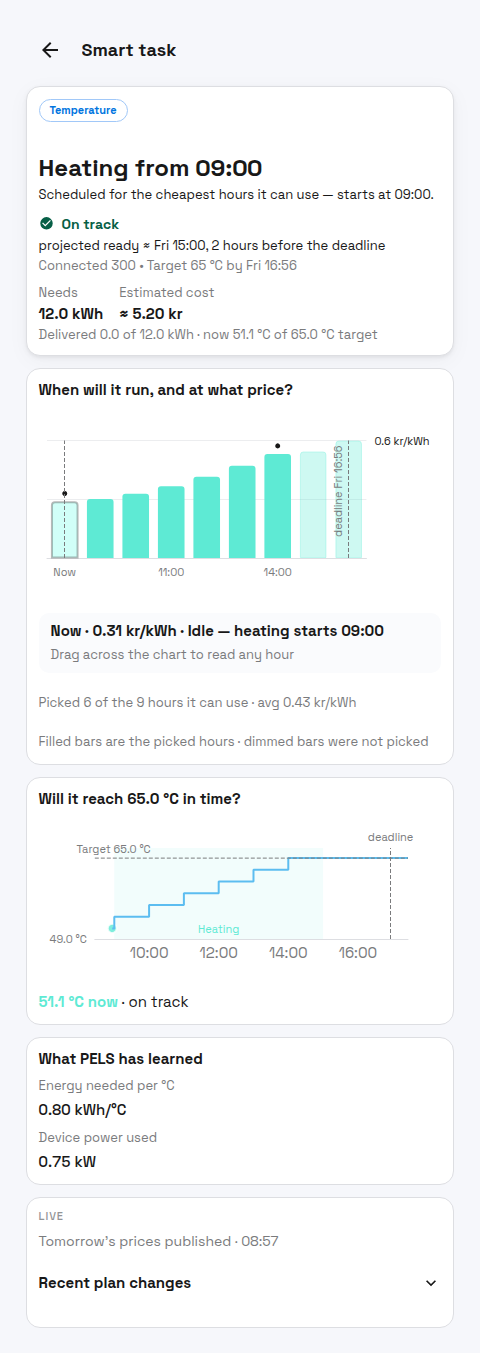 Figure 1. A Smart task plan answers two questions on two charts: when the device will run and at what price, and whether it will reach its target in time. Tap or drag across the hours for a per-hour readout.
Why the Plan Changed
PELS shows what triggered each replan:
- On the active task page, the Recent plan changes panel lists the reasons in order, most recent first — for example Tomorrow’s prices published, Rate estimate refined, or Schedule revised — daily budget shifted.
- On a past task, the What changed card on the history-detail page tells the same story for the finished run.
The panel collapses itself when every revision came from a Flow card (the user already knows what they did).
Power-Limit Control and Tasks
While a task is active, an hour outside its plotted plan can mean two different things: the task can finish without that hour, or the task keeps the hour even though the forecast left no room for energy there. A task keeps such an hour when it is cheaper than the hours it plans to use, or when it cannot reach its target otherwise. It promises nothing for that hour, but the device runs if power turns out to be available.
| Device setup | The task defers this hour | The task keeps this hour without planned energy | The task planned this hour |
|---|---|---|---|
| Power-limit control on | PELS holds the device off, even if power is available. | The device runs when power turns out to be available, under the hard cap. | PELS gives the task an opportunity to run under the hard cap and normal admission rules. |
| Power-limit control off | PELS keeps the device idle in its release posture, unless another automation controls it. | The task makes the device available; it runs when power turns out to be available. | PELS makes the device available for the planned task hour. |
In an hour kept without planned energy the task does not limit or pause lower-priority devices to make room. It uses only power that is actually free.
For EV charging, a common setup is to keep the charger managed by PELS but turn power-limit control off. This prevents ordinary run-when-power-is-available behavior when no active task controls the charger. An active task can still charge in an hour it keeps without planned energy when power is available; turning power-limit control off does not restrict charging to only the hours shown in the plotted plan. A deferred hour is different: PELS keeps the device off during that hour.
Budget and Task Interaction
Smart tasks compose with the rest of PELS — every layer keeps working underneath the task:
- The hard cap stays the hourly boundary PELS protects.
- Daily budget holds the task to a sensible pace when the day is already running hot.
- Priority decides which devices get room first when something has to wait.
- Price-based temperature shift keeps adjusting normal targets; a heating task target becomes the readiness target for that task.
Letting a Task Push Harder
By default a Smart task stays polite: it keeps to the daily budget and never takes power from devices you have ranked higher or equal. If a task is At risk of missing its target and the deadline matters, you can grant it extra leeway.
Three places set these permissions:
| Where | Use for |
|---|---|
| Smart task page → Edit task → Extra permissions | Turning a permission on or off for an existing task, with the estimate re-priced under the change before you save. |
| New smart task widget | Granting go over today's budget or limit lower-priority devices while creating the task. It has no toggle for the third one. |
| Set what a smart task may do action card | Granting a permission from a Flow — for example only once a task reports At risk. |
| Permission | What it allows |
|---|---|
| go over today's budget | The device may keep running during its planned hours even when the daily budget would normally pace it down. The daily budget is a soft, price-shaped target, so this lets the task run past it. |
| limit lower-priority devices | The task may limit lower-priority devices that are currently drawing power — turning them down or off — so it gets the power it needs. Devices at the same or higher priority are never touched. |
| pause lower-priority devices | PELS reserves the power the task needs to start, so it can start sooner. A device that needs a clear block of power to begin — an EV charger, a water heater — cannot start on scraps, so lower-priority devices wait their turn to resume until it has started. Nothing is switched off to make room, and devices at the same or higher priority are never affected. |
The Flow card also asks when the permission applies:
| When | Effect |
|---|---|
| At no time | The permission is off. |
| While it's scheduled to run | The permission applies during the task's planned hours, and stays set until you change it or clear the task. |
The Edit task toggles and the New smart task widget set the same thing as While it's scheduled to run; switching a toggle off is the same as At no time.
limit lower-priority devices is offered only for devices with power levels, such as a water heater with several heating steps. It works on its own: it makes room by turning down lower-priority devices, within both the hard cap and today's budget. To let the task use more than today's budget allows, also turn on go over today's budget. Editing a task only changes the permissions the page shows you — with one exception: a permission that can have no effect on the device may be dropped when you save.
Changing only the permissions re-plans the task and keeps the current run going. Changing the goal or the ready-by time starts a new run, and the run so far moves to Past tasks.
Two things stay true no matter what you grant:
- All three permissions stay inside the hard cap. PELS never pushes the selected capacity period's average over your limit to rescue a task. If a task still cannot finish within the hard cap, the fix is a lower daily budget or fewer competing devices — not a higher cap.
- Permissions persist once you grant them, but they have no effect until the planned hours or the rescue gate apply — so a task already on track stays on its normal plan.
Example: a water heater that must be ready
A water heater is set to reach 65 °C by 07:00 with cheap overnight hours booked. Someone showers at 21:00 and the tank drops well below target, leaving the morning short. To keep mornings covered, grant the task any of its permissions:
- go over today's budget so the heater can reheat during its planned hours even if the day's budget is tight.
- limit lower-priority devices so it can claim power from loads you care about less.
- pause lower-priority devices so PELS reserves the power the heater needs to start, instead of letting smaller loads take it a slice at a time.
You can grant the leeway as a standing setting once the task exists — open the task and use Edit task — or only when time is short. Pair Smart task time is running low (for example, 2 hours left) with Smart task status is At risk so a Flow grants the permission late — only when a task actually needs the help.
The Held-back devices dashboard widget uses the same create engine for a narrower case: a device PELS is currently holding back can get Let it run now, which creates a short Smart task with budget leeway and permission to take room from lower-priority devices. It never raises your hard cap. A device that already has its own Smart task does not get the button — that task is what brings it back.
Different Targets Can Be Useful
A mode target, a boost setting, and a Smart task target do not have to be the same value. They describe different intent:
| Setting | What it means |
|---|---|
| Mode target | The normal target for the active mode, such as Home, Night, or Away. |
| Boost setting | A temporary extra push, such as cheap-hour temperature boost or charge boost when a battery is low. |
| Smart task target | A one-off readiness goal by a specific time. |
That separation is often useful. For example, a room can normally sit at 18 °C in Night mode, use cheap-hour boost when prices are low, and still have a task to reach 21 °C by 06:30. An EV charger can have a low charge-boost threshold for basic readiness while a charging task aims for a higher target before a trip.
For many homes, this is the useful combination:
- Power limiting protects the hard cap.
- Daily budget shifts whole-home usage toward cheaper hours.
- Smart tasks reserve attention for specific devices that must be ready.
Energy tasks
An energy task asks PELS to deliver an amount of energy to a device before the ready-by time, for example 6 kWh by 06:00. It is for plain on/off devices that have neither a temperature reading nor a battery level, like a water heater switched by a relay: there is no temperature to heat to, but there is an amount of energy that heats the tank.
Progress is the energy the device takes after the task starts, counted from its power readings. PELS then plans exactly like any other Smart task: it spreads the remaining energy over the cheapest hours before the ready-by time, within the hard cap and, unless you allow more, the daily budget, and switches the device off once the energy has been delivered.
Which devices can take one: on/off devices only, so not EV chargers, thermostats or other devices with a target temperature, and not stepped loads. The device also needs a live power reading, its own power measurement or Homey Energy's live figure for it. A device that only reports a cumulative energy meter is not offered, because its power figure lags behind switching it on and off.
A task starts when it is created, so the window runs from the moment the Flow fires until the ready-by time. To heat a water heater every night between 22:00 and 06:00, run Add energy task from a Flow that fires at 22:00 with ready-by 06:00. Running the card again for the same ready-by time keeps the energy already delivered; a new night starts from zero.
A device that switches itself off when it is done stops taking energy. A water heater's own thermostat does this once the tank is hot. When the device takes no power for about 15 minutes of a scheduled hour in which PELS lets it run, the task shows At risk with the reason "Device stopped taking power", and it can end as missed even though the tank is full. Pick an amount the heater actually takes on a normal night, or treat that outcome as "the tank was already hot". From then on the task stops holding its scheduled hours for itself, so other Smart tasks can take them at the next hourly re-plan. It holds them again when the device draws power, and also after an hour the task does not book or a moment PELS holds the device back: the next time PELS lets it run, the device gets another 15 minutes before they are freed again. The task stays At risk for that reason until the device draws power again; PELS limiting the device in the meantime does not change it back to On track.
Status and History
The Smart tasks view shows current tasks and past tasks. Flow cards can also react when the saved status changes.
| Status | Meaning |
|---|---|
| Building plan… | A task is stored but PELS has not allocated hours yet — usually because prices through the ready-by time are not available. |
| Paused — unplugged | EV only: the charging task is paused because the car is unplugged or the session ended. The plan resumes when the car is plugged back in. |
| Paused — not managed | Managed by PELS is off for the device, so PELS is not planning anything for it. The task is kept, not deleted: turn Managed by PELS back on and the plan resumes on the next cycle. |
| On track | PELS currently expects the task to reach the target — including when the plan is ready but the first scheduled hour is still in the future. |
| At risk | PELS has a plan, but there is limited time or room left, or the device itself is holding delivery back: it is being left off until turned on again, it stopped taking power while PELS let it run, or (EV) the car's own charge limit is below the target, or the car is delaying charging on its own schedule. PELS limiting the device for the hard cap, the daily budget or a higher-priority device does not change the status on its own: the plan already accounts for it. |
| Cannot finish | PELS does not currently see enough usable time or energy delivery before the ready-by time. |
| Satisfied | The observed target is already met. For a heating or charging task, if a later reading drops below the target before the ready-by time, PELS returns to tracking it; delivered energy only ever goes up. |
An EV task keeps the target you set even when the car's own charge limit is lower. As soon as PELS knows the car's limit is below the target, the task reads At risk (or Cannot finish) with the limit as the reason, because the car will stop short. Raise the limit in the car, or set the task's target to the car's limit. While the car is still charging toward its limit, today's daily budget is named instead when it is what holds the task back, since a higher car limit would not finish the task. A car unplugged before it reaches its limit shows Paused — unplugged.
If no active task is stored for a device, that device simply has no Smart task status.
Use Smart task status changed for notifications after PELS saves a new status. Use Smart task ended when you want an alert after the task run concludes.
Outcomes
The Smart task ended trigger fires once when a task run concludes, with an Outcome tag:
| Outcome | What it means |
|---|---|
| succeeded | The task reached its target by the ready-by time. |
| missed | The target was not reached by the ready-by time. The cause can be on PELS's side (not enough time, power or budget) or on the device's side (it stopped taking power, or the car stopped at its own charge limit). The history entry names it. |
| abandoned | The task was finalized before it could complete — either because Clear smart task ran (manually or from another Flow), or because the device stopped reporting for about an hour while the deadline was still in the future. |
Filter on the tag when only some outcomes should notify, for example Outcome = missed for a "did not reach target" alert. An abandoned outcome is usually not a planning failure — it means the situation changed before the task could complete.
Three things that look like an abandonment but aren't:
- A briefly unplugged EV shows the Paused — unplugged status and resumes when plugged back in. Only an unplug that lasts past the abandon grace window finalizes the task as abandoned.
- Turning Managed by PELS off for a device does not delete its smart task. The task shows Paused — not managed and waits. Turn the switch back on and it resumes. If the ready-by time passes while it is still paused, the run ends as missed — or as abandoned when PELS never recorded a reading for the device during that run, which is the same rule every other unfinished run follows.
- A new smart task that replaces an in-progress one produces an internal
replacedoutcome. The Smart task ended trigger is intentionally suppressed in that case so the new task isn't shadowed by an ended-trigger for the old one.
If a Task Missed
When the History view shows a missed entry, PELS surfaces at most one recourse button. The button reads Review device unless the daily budget was the last thing holding the task back, or the car itself was: a car that stopped at its own charge limit or delayed charging on its own schedule gets no button, because no PELS setting changes the car. The cause sentence names that last blocker, plus the earlier one that held delivery back longest.
| Recourse button | What happened | What to do |
|---|---|---|
| Lower daily budget | The daily energy budget ran out before the ready-by time. PELS had hours scheduled but the budget cap closed those hours down. | Lower the daily budget so future days reserve usable power earlier — in the Budget tab or via the Set daily budget Flow card. Raising the hard cap is not the right answer: the hard cap reflects your grid tariff step, not a tuning knob. |
| Review device | Any other last blocker: the device stopped taking power, not enough available power was left, a higher-priority device took the room, or the plan did not leave enough time. | The button deep-links you to the device-settings overlay. Check stepped-load planning power, target temperature, priority, When limiting behavior, and the Flow wiring that reports state back to PELS. |
| (no button) | The car stopped at its own charge limit, or delayed charging on its own schedule or smart charging. | Raise the car's charge limit, or turn off its own charging schedule, in the car. |
If the same device misses repeatedly, treat it as a tuning loop:
- Read the cause sentence on the history-detail card.
- Apply the recommended recourse.
- Compare the next run.
If the task needs more room only on the run before the deadline, Set what a smart task may do can grant go over today's budget or limit lower-priority devices permission for the scheduled hours — see Letting a Task Push Harder.
For abandoned runs, the usual answer is that there is nothing to fix. Only investigate if the abandonment was unexpected — for example, a Flow you didn't expect ran Clear smart task, or an EV unplug event fired when the car was still connected.
Practical Examples
Charge an EV by morning
Create a Flow that runs when the car is plugged in:
| Flow part | Card |
|---|---|
| When | Charger or car app: plugged in |
| Then | PELS: Add charging task |
Set the target battery percentage and ready-by time, for example 80 % by 07:00.
Recommended charger setup:
- Managed by PELS on
- Power-limit control off by default to prevent ordinary run-when-power-is-available behavior when no active task controls the charger. An active task may still charge in an hour it keeps without planned energy; see Smart Tasks.
- Current control configured as described in Configure an EV Charger. A new Easee setup uses built-in device control; an existing Easee current-control Flow remains supported.
- Battery reporting Flow configured when your car or charger app can provide it
Heat a water heater on a relay overnight
Create a scheduled Flow:
| Flow part | Card |
|---|---|
| When | Time is 22:00 |
| Then | PELS: Add energy task |
Set the energy and ready-by time, for example 6 kWh by 06:00. PELS runs the relay in the cheapest hours before 06:00 until the heater has taken 6 kWh. As with a charger, keep Power-limit control off for the relay so PELS does not run it on available power between tasks; while a task is active, the task decides when it runs either way. See Power-Limit Control and Tasks.
Heat before a known time
Create a scheduled Flow:
| Flow part | Card |
|---|---|
| When | Time is 20:00 |
| Then | PELS: Add heating task |
Set the target temperature and ready-by time, for example 21 °C by 06:30.
This is useful for rooms or water heaters where the exact ready time matters more than simply reacting to the current price level.
Troubleshooting
| Problem | What to check |
|---|---|
| The task stays pending | Check that price optimization is enabled and that prices are available through the ready-by time. |
| The EV task does not change charger current | Confirm the charger is configured as EV 1-phase or EV 3-phase. For Easee, check the path you chose: Use built-in device control, or the existing current-control Flow. For other chargers, check the Flow using EV charger current (A). |
| The device starts in an hour outside the plotted task plan | The task keeps that hour without planned energy, because it is cheaper than the planned hours or the task cannot finish otherwise, and runs there when power is available. A deferred hour is held off. With no active task controlling the device, Power-limit control on allows normal run-when-power-is-available behavior. |
| The task cannot meet the target | Check target size, ready-by time, planning power/current, daily budget, and device priority. |
| A completed task starts tracking again | This is expected if a fresh reading drops below the target before the ready-by time. |
For problems beyond Smart tasks — capacity, budget, or missing data — see the full Troubleshooting guide.