
Homey Energy + PELS
Homey Energy is the energy foundation PELS builds on: whole-home power, dynamic electricity prices, and per-device energy reporting all in one place. PELS takes that foundation and acts on it — when you approach your capacity limit, devices get turned down; when electricity is cheap at 3 AM, the water tank preheats.
PELS is the active control layer on top of Homey Energy. It reuses the data Homey already collects and turns it into automatic, hour-by-hour decisions across every managed device.
If you want a quick overview of how Homey Energy works, see Homey Energy management and Understanding the Homey Energy tab.
What does PELS add?
If you are already using Homey Energy, here is what PELS gives you on top:
Automatic capacity control
PELS watches your total power consumption and automatically lowers, pauses, or turns off heaters, water tanks, or EV charging before you exceed your capacity limit. When there is available power again, it resumes them in the right order, based on priority. This keeps you within your grid tariff step (effekttrinn) without you having to watch the meter.
Read more: Getting Started · Configuration
Price-based load shifting
PELS reads hourly electricity prices and shifts heating to the cheapest hours of the day. During expensive hours it reduces temperatures; during cheap hours it preheats. You set the temperature adjustments per device and PELS handles the rest.
Read more: Configuration — Settings > Electricity prices
Modes and priorities
Set up profiles like Home, Away, Night, or Vacation with different target temperatures and priorities. PELS switches between them automatically via Flow cards, so your comfort settings adapt to your schedule.
Read more: Configuration — Settings > Modes
Daily energy budgets
Set a daily kWh target and PELS paces managed load across the day. It gives cheaper hours more room and holds back when you are ahead of budget.
Read more: Daily Energy Budget
Getting started
If PELS is not installed yet, get it from the Homey App Store. Setup takes about 15 minutes — see the Getting Started guide for a full walkthrough.
The two sections below cover how to point PELS at your Homey Energy data specifically. You can use one or both — they are independent settings.
Power metering via Homey Energy
Homey Energy already knows your total home consumption. Instead of creating a Flow to feed that value to PELS, you can tell PELS to read it directly.
Setup
- Open More > Apps > PELS > Settings.
- Go to Settings > Limits & safety.
- Change Power source to Power meter.
- Pick your meter under Whole-home meter, just below Power source.
If you never chose the Flow source or sent readings through one, and your meter is marked Tracks total home energy consumption and is the only whole-home meter Homey lists, PELS sets both of these for you shortly after starting; you only need to check them here.
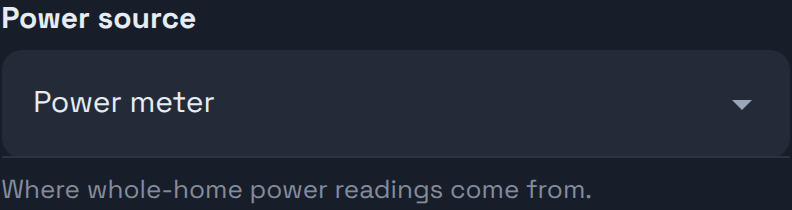
Once a meter is chosen, PELS polls it every 10 seconds. The Overview tab should show live power data within moments.
PELS always reads one named meter. If your meter is marked Tracks total home energy consumption, is the only whole-home meter Homey lists, and no Flow has ever sent PELS readings, PELS picks it on its own shortly after starting and shows it here; with several meters it does not guess, so choose the right one. A meter you pick yourself does not need that marking. Until a meter is chosen, PELS shows a warning that starts with "No power readings" and leaves your managed devices as they are: nothing is limited or resumed.
Per-device energy reporting
Homey Energy is also the source of per-device energy reporting. Some devices report their own power directly; others rely on Homey's estimated usage and the values configured in the device's Energy settings. PELS reads from the same place Homey does — fix a wrong Energy value in Homey once and both surfaces update.
An Energy value lets PELS support the device and estimate what it draws. Limiting it for power needs a reading for that device: its own power meter, or the live value Homey Energy shows for it. A temperature device without one still follows its mode targets and price shift.
If a device's energy data looks off, the canonical fix is in Homey's Energy settings. PELS picks the corrected values up on the next planning cycle.
Requirements
Your power meter must be paired with Homey and appear in Homey Energy — either marked Tracks total home energy consumption in its device settings (the same cumulative reading Homey shows as "Total home consumption" in the Energy dashboard) or as a sensor-class power meter. PELS reads the one meter chosen under Whole-home meter; with exactly one whole-home meter present and marked as tracking total home consumption, PELS picks it on its own.
Common meters that work: Tibber Pulse, P1/HAN readers, Shelly EM, or any device Homey recognizes as a whole-home energy tracker.
When to use the Flow card instead
- Your meter is not tracked by Homey Energy.
- You want to combine multiple sources or apply custom calculations before feeding the value to PELS.
TIP
You can switch between the two sources at any time. The change takes effect immediately — no restart needed.
Electricity prices via Homey Energy
If your Homey has dynamic electricity prices configured, PELS can read them directly instead of fetching prices from its own sources.
This is the recommended path outside Norway. PELS ships a built-in Norwegian spot price source with full grid-tariff and electricity-support calculation, and outside Norway, Homey Energy delivers the same all-in hourly prices straight into PELS — every supported country, no extra configuration.
Setup
- Open More > Apps > PELS > Settings.
- Go to Settings > Electricity prices.
- Change Price source to Homey Energy (dynamic prices).
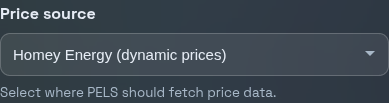
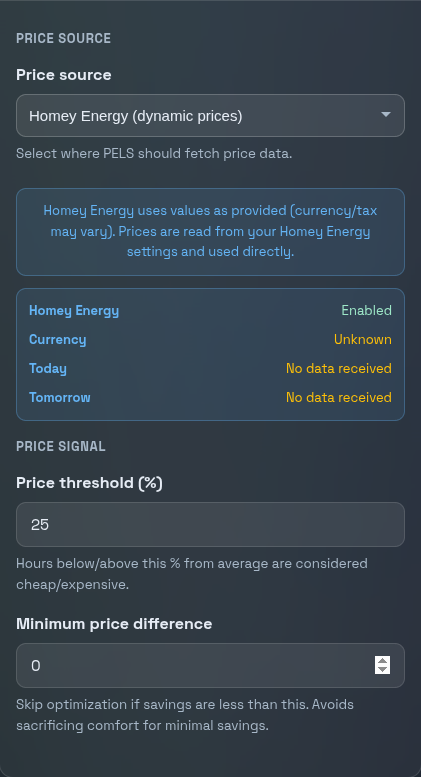
PELS fetches today's and tomorrow's prices and uses them for price-based optimization. The status card below the selector confirms whether data is flowing.
How prices are used
Homey keeps your prices in two parts: the hourly market price, and the costs you entered yourself under Energy > Electricity > Price — grid tariff, taxes and VAT, stored as a formula. PELS reads both and combines them, so it plans against what you actually pay per kWh, not the bare market price.
If you change that formula in Homey, PELS picks the change up at its next price refresh (within three hours, and immediately on restart).
Homey lets you write a free-form formula as well as using its guided fields. PELS understands the guided fields, ordinary arithmetic (+ - * / ^ and brackets), and the functions min, max, abs, floor, ceil and round — so a formula like max(0, [[price]] * 0.9) works.
If PELS cannot work out your prices, it reports them as unavailable and pauses price-based features rather than falling back to the bare market price, which would look plausible and be too low every hour. The status card under Settings > Electricity prices names which of three things happened:
- Not usable — the formula uses something beyond what PELS understands. Simplify it under Energy > Electricity in Homey.
- No usable prices — the formula is arithmetic PELS understands, but it does not produce a usable price for any hour right now. Check it under Energy > Electricity in Homey.
- Not read yet — PELS has not managed to read your price setup from Homey. It tries again at the next refresh, or press Refresh prices.
Each hour is classified as cheap, normal, or expensive based on a configurable threshold (default: 25% from average). You then set per-device temperature adjustments — for example, +4 degrees during cheap hours and -4 during expensive hours. PELS applies these automatically.
Read more: Configuration — Settings > Electricity prices
Getting paid for solar you export
If you have solar, Homey also models what your power company pays you for the power you send back — a fixed amount per kWh, or a formula that follows the hourly price. PELS can use those terms directly.
Under Settings > Electricity prices > Export price, turn the section on and set Where the price comes from:
- Amounts I enter here — the share-of-spot and fixed amount you type into PELS. This is the default, and what every existing setup keeps using.
- Homey Energy — the feed-in price you already set up in Homey under Energy > Electricity. Nothing to retype, and a price that follows the hour when your contract does.
Choosing Homey Energy replaces the amount fields, because the price then comes from Homey.
Check that Homey actually has an export price before you switch. If export pricing is off in Homey, or PELS cannot work out the export formula, PELS has no export price for those hours: it plans on the import price, exactly as it does for a home with no export price configured, and the Solar card marks that energy as unpriced rather than showing a zero. It never invents a number. Your own amounts are no longer applied while the source is Homey, so set the price up under Energy > Electricity in Homey, or switch back to Amounts I enter here.
When to keep using Norway pricing
If you are in Norway and want PELS to calculate the full cost including grid tariffs (nettleie), provider surcharges, and electricity support (strømstøtte), use the built-in Norway (spot + grid tariff) source instead. It gives you more granular control over each cost component.
Using both together
You can use Homey Energy for both power metering and electricity prices at the same time:
- Power source is in Settings > Limits & safety.
- Price source is in Settings > Electricity prices.
A typical setup for someone outside Norway: set both to Homey Energy and you are done — no Flows needed for basic operation. From there, configure your hard cap, pick which devices to control, and set up price response.
Next steps
- Getting Started — full setup walkthrough
- Configuration — every setting explained
- Flow Cards — trigger modes, report power, and more from Homey Flows
- Tips and Best Practices — practical advice for getting the most out of PELS