
Configuration
The PELS settings UI is organized around five top-level destinations:
| Destination | Use for |
|---|---|
| Overview | Current power, safe pace, hard cap, and what PELS is doing right now. |
| Budget | Daily budget plan, today/tomorrow planning, and budget adjustments. |
| Usage | Hourly and daily energy history. |
| Smart tasks | Current and past ready-by tasks. |
| Settings | Limits, devices, modes, prices, simulation, and advanced tools. |
Most configuration starts in Settings. The Settings landing page links to Setup & recommendations, Limits & safety, Devices, Modes, Electricity prices, Price-aware devices, Multiple meters, Simulation mode, and Advanced.
Overview
The Overview page shows the current plan: what PELS wants each managed device to do right now.
| Field | What it shows |
|---|---|
| Power now | Current whole-home power draw. |
| Safe pace now | The current pace PELS reacts around. It can come from the selected-period hard cap, the daily budget, or both. |
| Hard cap | The average power you don't want the configured capacity period to exceed. |
| Device cards | Running, Idle, Off, Limited, Resuming, Manual, or Unavailable. |
| Status line | Short explanation of why PELS is waiting, limiting, or resuming. |
Use Overview when you want to understand live behavior. Use Settings when you want to change setup.
For the planner-state mapping, see Plan States.
Budget
The Budget page is the daily planning surface. It shows whether the selected day is on plan (Plan view) and lets you preview and apply changes to the daily budget model (Adjust view).
See Daily Energy Budget for the full description of each view and setting (Enable daily budget, Daily budget kWh, Use cheaper hours, Background usage reserve, Managed device flexibility). Read it before changing the advanced tuning values.
Usage
The Usage page helps you understand what PELS has observed.
- Today so far shows hourly kWh for the selected local day.
- Last 7 days shows recent daily totals.
- Typical day shows historical hourly patterns.
- Detailed hourly view shows lower-level hourly buckets.
- Solar (shown when PELS has a solar signal) shows today's Produced, Used at home, and Exported, with the grid cost you avoided and what you earned from export. See Solar and Self-Consumption.
The hourly bars split each hour into managed device usage and background usage, so you can see how much of your consumption PELS can influence.
Hourly data is kept for 30 days. Daily totals are kept for one year. Resetting usage history lives under Settings > Advanced > Data management.
Smart Tasks
Smart tasks show devices with an active target and ready-by time. Tasks are created from Homey Flow cards or the New smart task dashboard widget, then shown in the settings UI so you can inspect the current plan and history.
| Card or view | What it does |
|---|---|
| Add charging task | Plans EV charging toward a target battery percentage by a ready-by time. |
| Add heating task | Plans heating toward a target temperature by a ready-by time. |
| New smart task widget | Creates a task from a Homey dashboard, without a Flow. |
| Smart tasks list | Shows current tasks, targets, and ready-by times. |
| Task plan page | Shows selected hours, price context, expected work, background usage, and progress. |
| History | Shows previous task outcomes. |
See Smart Tasks for behavior details and Book Cheap Hours With Flows if you prefer a fixed number of cheapest hours instead of a target-based task.
Settings > Limits & Safety
This is where the core capacity settings and whole-home power source live.
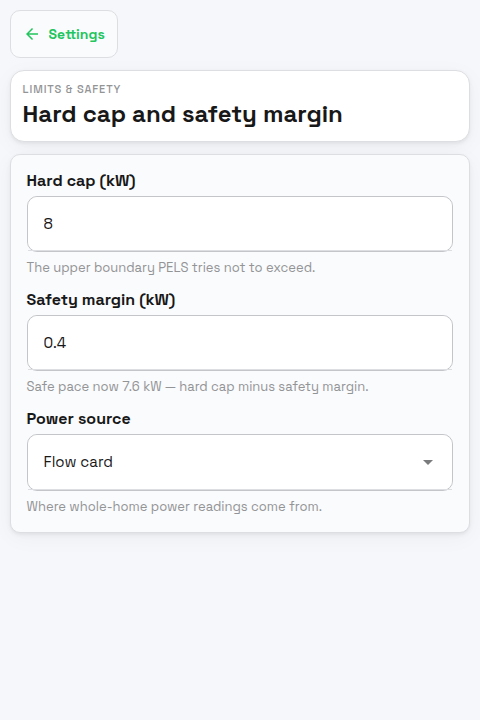
| Setting | What it does |
|---|---|
| Capacity period | Hourly average for hourly tariffs; 15-minute average for quarter-hour peak tariffs, such as Belgium's capacity tariff. |
| Hard cap (kW) | The average power you don't want the selected period to exceed. Set this from the peak or tariff step you want to protect. With no capacity tariff, set it well above what your home ever uses, and PELS never limits for it. |
| Safety margin (kW) | Buffer below the hard cap. PELS starts reacting before the hard cap is reached. |
| Power source | Where whole-home power readings come from: Flow card or Power meter (read through Homey Energy). |
| Whole-home meter | Shown with the Power meter source. Which meter whole-home power readings come from. PELS always reads one named meter: when the only whole-home meter Homey lists is marked Tracks total home energy consumption and no Flow has ever sent PELS readings, PELS picks it on its own shortly after starting; otherwise choose it here. A selection does not need Homey's Tracks total home energy consumption marking. The list shows whole-home meters rather than every power-using device, so an EV charger or smart plug won't appear; a meter you chose earlier stays selectable even if it no longer appears. |
On the 15-minute period, Highest completed quarter this month reports PELS's largest fully tracked 15-minute average for the current month. It is an operational estimate from the readings sent to PELS, not a grid bill or a reproduction of operator rules such as a minimum monthly peak.
Important:
- The selected-period hard cap is the only urgent safety boundary.
- The Hard cap breach imminent — manual action needed trigger fires only when PELS projects a hard-cap breach in the current capacity period and cannot limit any more load.
Settings > Devices
The Devices page shows temperature devices, on-off devices, and supported EV chargers. Open a device to configure its detail panel.
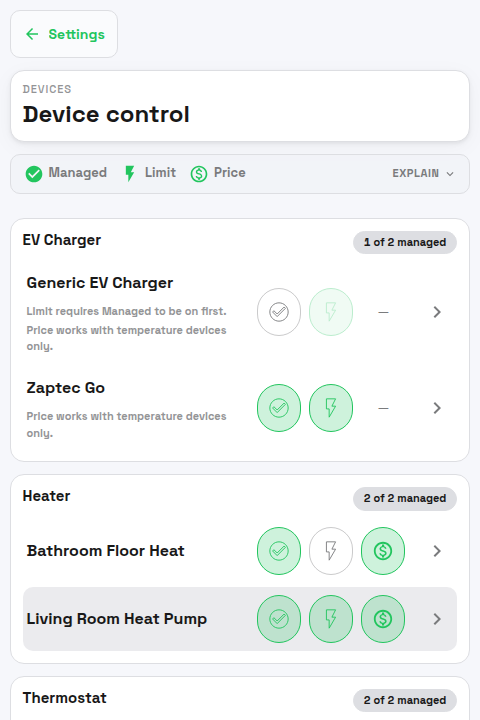
Top-level controls:
| Control | What it means |
|---|---|
| Managed | PELS includes this device in modes and plans. Turning it on also turns on Limit, when the device has a power reading; turn Limit off again if PELS should plan around the device without lowering it. |
| Limit | PELS may lower, pause or turn off this device: to stay under the hard cap, to keep to your daily budget, or to follow your solar surplus. |
| Price | PELS adjusts the temperature target around electricity prices. |
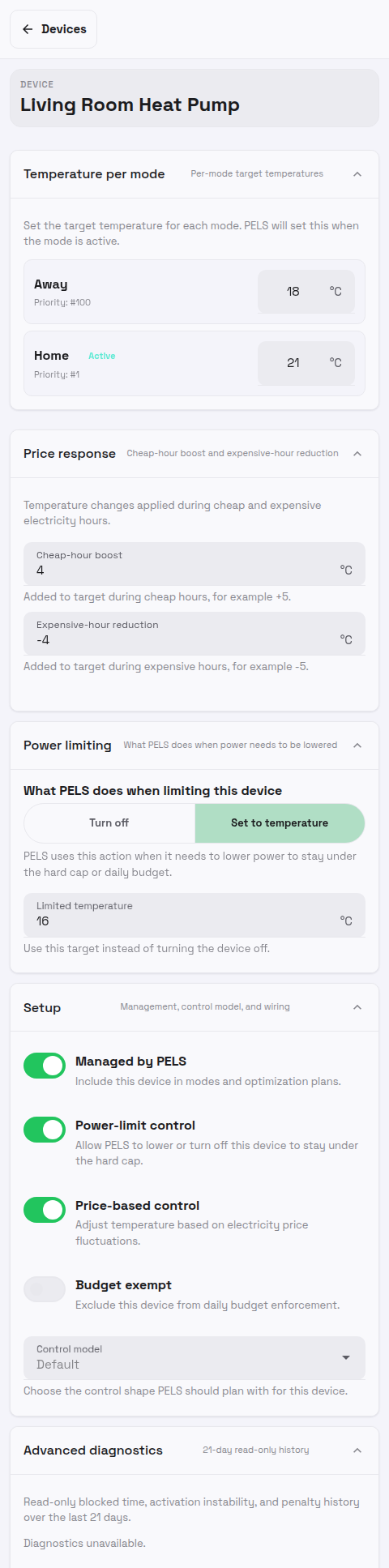
Device detail sections. The page composes per device kind — an EV charger, a thermostat, a stepped load (such as a water heater), and a plain on/off device each lead with the sections that matter for that device, and sections that do not apply are not shown. The top of every managed device's page is a live status header: state, current draw, one fact line (temperature and target, or charging state, battery, and level), the reason the device is limited when it is, and a Smart task link when one is scheduled. A device PELS does not manage has no live status to report, so its page shows no header, and its Setup section starts expanded.
| Section | Shown for | What it contains |
|---|---|---|
| Charging | EV chargers | The charging control readout (with a Change button that opens Setup), charge boost, and a statement of what limiting does (PELS pauses charging and resumes it when power allows). |
| Car | EV chargers | Which cars charge here, the battery level PELS reads from the car, and where the level comes from. |
| Temperature per mode | Temperature devices | Per-mode target temperatures, with each mode's resume priority (reordered in Modes). |
| Price response | Temperature devices | Cheap-hour boost and expensive-hour reduction. Stays visible with a hint naming the switch that enables it when price control is off. |
| Solar surplus (prosumer) | Homes with solar | Use solar surplus lifts a device's target while your panels are exporting, and Run on solar surplus runs an on/off device only while there is surplus. See Solar and Self-Consumption. |
| Stepped load profile | Stepped loads | Step names, planning power values, target-power range, and temperature boost. Hidden for EV chargers using an EV preset — the preset owns the steps. |
| Power limiting | All devices PELS can limit | How far PELS may go when limiting this device — off, a limited temperature, or a lowest step — when there is a real choice; a device with only one possible limit gets a statement of what PELS does instead of a one-button choice. PELS goes only as deep as it needs. A device that reports whether it is heating or cooling gets a second limit, Limited temperature when cooling; see Limited temperature for a heating and cooling device. |
| Setup | All devices | Managed by PELS, power-limit control, When the temperature changes outside PELS, leave off until turned on again, price-based control, budget exemption, built-in device control, control model, and Power when running. Opens automatically for devices that are not set up yet. |
| Activity log | All devices | Recent state changes PELS recorded for this device. |
| Advanced diagnostics | All devices | Read-only history of waiting time, failed restarts, and restart backoff. |
Selecting a car chooses its matched battery reading as the charger's battery source. While any car is selected, PELS ignores both the charger's own battery reading and the Report battery level for charger Flow card. Until a car is matched, the charger has no battery level. Once a selected car has been matched to the charger, Setup & recommendations flags an enabled Flow that still reports battery level for this charger, because that action is ignored while a car is selected. While no selected car has been matched to the charger, it instead warns that the charger has no battery level and suggests clearing the car selection so the Flow keeps working until the car shows as matched. If the selected car was removed from Homey, it can never be matched, so Setup says to clear that selection. Clear the car selection to use native or Flow battery reporting again.
When a selected car is unavailable in Homey, PELS temporarily removes its association and battery level because the retained car data cannot be trusted. The charger remains managed normally. If the car becomes available again while both it and the charger still report a connection, PELS resumes the association automatically; no physical replug is needed.
Notes:
- Power-limit control needs a power reading for the device: its own power meter, or the live value Homey Energy shows for it. Until the first reading arrives, PELS does not limit the device.
- Temperature devices can still be managed for mode and price behavior even when power-limit control is unavailable.
- Set When the temperature changes outside PELS to Keep the new temperature when another app or Flow owns a thermostat's target. PELS keeps showing the measured temperature and target, and never writes the target itself. It still manages capacity with the device's other controls: turning it off and on, and, for a device with power levels such as a compatible water heater, lowering it a level at a time. Saved temperature settings are kept and apply again when you switch back to Return to mode target.
- Built-in device control lets PELS adjust a supported device, including compatible water heaters and Easee chargers, without a current-control Flow. When an existing Flow already writes the same setting, PELS keeps that working setup and leaves built-in control off. Setup & recommendations offers an optional migration: disable only the Flow action that controls the device, then turn on Use built-in device control. A Flow that only reads the device, reports battery level, or adjusts an unrelated setting is not a built-in-control conflict. Battery reporting should remain only when no car is selected for that charger; otherwise PELS flags the ignored action separately.
- Only managed devices appear in Settings > Modes. Only managed temperature devices with Price enabled appear in Settings > Price-aware devices.
- Power when running is how much PELS assumes the device draws while it runs, and it decides how much power PELS frees up before resuming it. The field shows the figure PELS is using now and says where it came from — measured by PELS, read from the device, from Homey, or a rough estimate when PELS has no reading yet. Type a value in watts to correct it, or leave it empty to let PELS work it out. It is not shown for stepped loads, which are sized per configured step. If the figure looks wrong and you would rather fix it at the source, check Device -> Advanced Settings -> Energy in Homey and verify the configured power usage values.
- For EV current-control setup, see Configure an EV Charger.
Leave off until turned on again
Off by default, and available for devices PELS can switch on and off.
When it is on and the device is turned off — in Homey, on the device itself, or from another Flow — PELS leaves it off until it is turned on again. Turning the device on again hands it straight back to normal PELS control. Devices PELS turned off itself still resume on their own; this only applies to an off action that did not come from PELS.
With this setting on, one off that PELS made also counts: a device PELS was keeping off for Run on solar surplus. If you turn Run on solar surplus off while the device is off, PELS leaves it off until it is turned on again, instead of starting it from the grid. Turning Run on solar surplus back on later does not start it either; turn the device on once, and PELS runs it on surplus again.
On the Overview the device reads Off with Turned off elsewhere — turn it on to resume.
It covers on and off only. For a thermostat, PELS keeps setting the temperature it would set anyway, even while it is leaving the device off; only Keep the new temperature (under When the temperature changes outside PELS) stops that.
A Flow that turns the device off counts as turning it off elsewhere. That matters if you book hours with Flows: when the Flow that ends a booked hour turns the device off, PELS leaves it off, and turning Power-limit control back on is not enough to start it again. The Flow that starts the next booked hour has to turn the device on as well.
It is worth being clear about how this differs from turning Power-limit control off, since both stop PELS resuming a device:
| Power-limit control off | Leave off until turned on again | |
|---|---|---|
| May PELS limit the device? | No | Yes |
| May PELS resume it? | No, until you switch control back on | Yes, except while it has been switched off outside PELS |
| How does it go back to normal? | Re-enable Power-limit control | Turn the device on |
| What it is for | Handing the device to another automation entirely | A temporary override, by you or another automation |
Turning the device on gives control back to PELS; it does not promise the device keeps running. If power is tight, PELS may limit it again right away.
One limitation worth knowing: PELS can only notice an off action that your device's Homey integration reports back. A physical switch that does not tell Homey it was pressed is invisible to PELS.
Settings > Modes
Modes let you store different comfort and priority profiles such as Home, Away, Night, or Vacation.
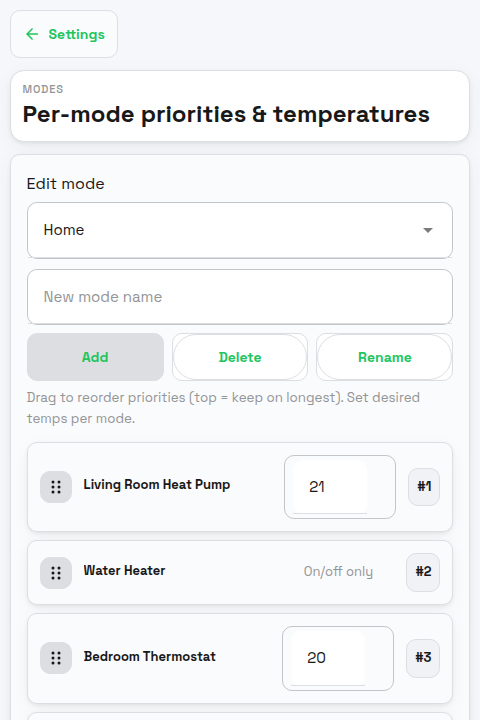
What changes per mode
For each managed device in a mode:
| Setting | What it does |
|---|---|
| Desired temperature | Target temperature for the mode |
| Priority | Lower number means higher priority. These devices stay on longer and resume first. |
Typical approach:
- Keep living-room comfort high in Home mode.
- Move bedroom heating higher during Night mode.
- Lower less critical loads in Away mode.
Changes save automatically.
Settings > Electricity Prices
Price support is optional, but it makes the app more useful for thermal loads, daily budget price shaping, Smart tasks, and cheapest-hour Flow cards.
| Setting | What it does |
|---|---|
| Price source | Choose Norway (spot + grid tariff), Homey Energy (dynamic prices), Power by the Hour (app), or Flow (prices from a Flow card). |
Power by the Hour reads prices straight from that app, with no Flow to build. Install Power by the Hour (version 8.10.0 or newer), add a price device for your bidding zone in it, and pick this source. If you have more than one price device, PELS asks which one prices your home. The prices are the ones that app publishes — the spot price plus the markups you set there — so the grid tariff is not included unless you added it there yourself as a fixed or time-of-day markup.
If you use Norway pricing, you also set:
- county
- grid company
- tariff group
- price area
- provider surcharge
- threshold and minimum difference values
If you use external flow tags:
- Set Price source to Flow (prices from a Flow card).
- Feed the full JSON payload for today's prices into Set external prices (today).
- Feed tomorrow's payload into Set external prices (tomorrow) when available.
Export price (prosumer)
If you sell surplus solar back to the grid, turn on Use an export price and set a share of the spot price and/or a fixed amount.
On the Homey Energy price source you also get Where the price comes from:
- Amounts I enter here — the two amounts above. This is the default, and what every existing setup keeps.
- Homey Energy — the export price you already set up in Homey under Energy > Electricity. Choosing it replaces the amount fields, because the price then comes from Homey. If Homey has no export price set up, or PELS cannot work out the formula, PELS plans on the import price as it would for a home with no export price at all, and your own amounts are no longer applied, so check Energy > Electricity in Homey before switching. See Getting paid for solar you export.
PELS then schedules against the blended planning price (what your energy is actually worth once export is accounted for), while your bills, receipts, and the budget's money view stay on the import price you are billed. This section appears once PELS can see your solar (a managed solar device reports production, or your meter has recorded about a kilowatt-hour of grid export), and stays visible if you already have an export price configured. See Solar and Self-Consumption.
Settings > Price-Aware Devices
This page adjusts devices that already have price response enabled. To add a device here, first open the device under Settings > Devices and enable Price or Setup > Price-based control.
| Setting | What it does |
|---|---|
| Respond to prices | Enables or disables price response globally. |
| Cheap (°C) | The device's cheap-hour boost: how far its temperature goes up while power is cheap. |
| Expensive (°C) | The device's expensive-hour reduction: how far its temperature goes down while power is expensive. |
Water heaters and similar thermal loads are usually the best first candidates.
Settings > Simulation Mode
Simulation mode lets you test behavior without switching devices.
| Setting | What it does |
|---|---|
| Simulation mode | PELS shows what it would do, but Main home devices are not switched automatically. |
Use this while you are tuning priorities, power estimates, and limits. Turn it off when you are ready for PELS to control devices.
Simulation mode covers your Main home. Each meter area has its own Control devices in this area switch under Limits & safety, so an area can keep limiting its devices while Simulation mode is on.
Settings > Advanced
Advanced is for diagnostics, cleanup, and expert tuning.
| Setting | What it does |
|---|---|
| Debug logging topics | Chooses which internal topics emit debug logs. |
| Reset usage history | Clears hourly samples, daily totals, and weekday/weekend averages. |
| Clear device data | Removes stored PELS metadata for one selected device. |
| Device log | Writes a selected Homey device payload to the app logs for inspection. |
Background usage reserve and Managed device flexibility are edited in the Budget page's Adjust view (Budget shaping section), reachable from the Budget page header or the Daily budget row in Settings. Only change them if you understand the tradeoff — they can materially change when devices are limited and resumed.
For the exact formulas, see Daily Budget Weighting Math.
Suggested setup order
- Get the meter Flow working.
- Enable management on a small set of obvious devices.
- Tune priorities and limits.
- Add price-aware devices.
- Add daily budget pacing if you want whole-day guidance.
- Add Smart tasks for devices that must reach a target by a ready-by time.
For EV charging, add EV charger current control after the meter Flow and capacity settings are working.