
Dashboard Widgets
PELS ships six small widgets you can pin to a Homey dashboard. Most show status at a glance and refresh on their own; two are interactive — New smart task lets you create a task and Held-back devices lets you release one — straight from the dashboard.
Add any widget from your Homey dashboard's widget picker, then place it where you want.
Available power
Answers "how much room do I have right now?"
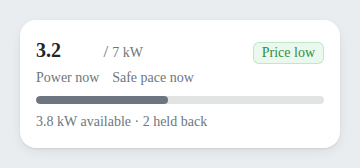
The widget shows:
- Power now against Safe pace now, with a coloured bar that turns warning as you approach the safe pace and red when the current capacity period is on pace to exceed the hard cap.
- Available power remaining in the current capacity period (the hour, or the quarter on the 15-minute period).
- The number of devices PELS is holding back, when any are.
- A price-level chip when prices are cheap or expensive (hidden when prices are normal).
It refreshes about every 10 seconds. If no new reading has arrived recently — for example after a restart, during a meter outage, in a quiet stretch between Flow reports on the Flow power source, or while the reading seems stuck on one value — the widget keeps showing the last known reading (dimmed) rather than blanking, but it stops asserting the present: the coloured bar and state label go neutral and the bottom line reads No recent power reading instead of available power and held-back counts, so figures from before the gap are never presented as live. Once the meter has been silent, or stuck on one value, long enough for PELS to limit devices on that account (about ten minutes), the tile stops showing the old figures altogether and reads No new power readings. The next new reading returns it to normal on its own.
Electricity price
Answers "is power cheap or expensive right now, and when will that change?"
The widget draws the price curve from up to three hours ago (never before midnight) to the last price PELS knows, with the periods PELS counts as cheap or expensive shaded behind it and the two lines drawn across it as faint dashes, so you can see how close the prices come to them. Above the chart it shows:
- The current price and its level: Price low, Price normal or Price high.
- Where the lines are, for example
Cheap at or below 24.60 øre · expensive from 40.90 øre. When no period on the chart reaches a line, the widget adds how far the prices stay from it, for exampleNo expensive prices: the highest is 87.84 øre., so an unshaded day reads as a choice rather than a gap: PELS only changes the level when the difference is worth giving up some comfort for. - Until tomorrow's prices are published, a note that the lines can still move. The lines follow the average of today and tomorrow, so they shift when tomorrow's prices arrive.
The levels are the same ones your devices and Flows act on, and they always follow the import price you are billed. Choose Show in the widget's settings to draw the import price, the export price, or both. The export price has no levels of its own. You set what counts as cheap or expensive under Settings > Electricity prices.
The widget refreshes about every minute.
Budget and Price
Answers "where will today land?"
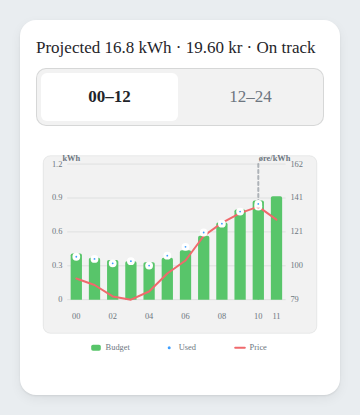
The widget shows today's hourly plan as a chart — managed and background usage against the daily budget — with the cheaper and more expensive hours marked, a now-line, and a projected end-of-day total in kWh and money. Use it to see at a glance whether the day is tracking to plan and which hours are the cheap ones.
Smart tasks
Answers "are my smart tasks on track?"
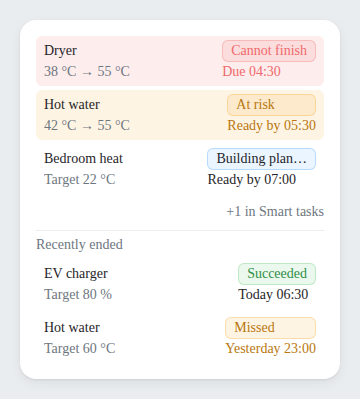
The widget lists up to three active Smart tasks, ranked by how much attention they need: tasks PELS expects to miss first, then at-risk, then pending, then on-track. Satisfied tasks drop off automatically.
Each row shows:
- Device name and the status chip (for example Cannot finish, At risk, On track, or Unplugged).
- The current value moving toward the target (for example
19 °C → 21 °C), or just the target if the device has not reported yet. - The Ready by time the task is aiming for.
If you have more than three active Smart tasks, a small +N in Smart tasks line appears at the bottom — the full list lives in the Smart tasks tab inside PELS.
Tap a task to see its progress
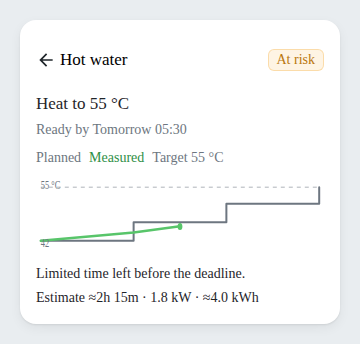
Tap any row to open a compact progress trajectory: the planned line (where PELS expects the device to be heading toward its target) overlaid with the measured line (where it actually is so far), against a dashed target reference, with the hours PELS scheduled shaded behind them. A colour-coded legend names each line and the target value, so you can see at a glance whether a task is keeping up with its plan or falling behind.
Recently ended tasks
Below the active list, a Recently ended section shows tasks that finished in the last 24 hours — whether they reached their target, missed it, or were abandoned — each with an outcome chip and the time it ended. Tap one to see how the run actually played out against its plan. When the list is longer than the widget, scroll it inside the widget to reach the rest.
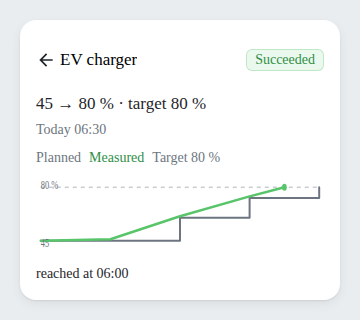
The widget refreshes about every 60 seconds.
New smart task
Answers "get this device ready by a time — without building a Flow."
An interactive widget that creates a Smart task in a few taps: pick an eligible device (thermostat, water heater, or EV charger), type the goal and a specific Ready by time or use the preset shortcuts, then preview and confirm. The resolved day is shown so you can check whether the time is today or tomorrow. The preview shows the hours PELS would pick, the estimated cost, and a price curve with the chosen hours highlighted. An optional Extra permissions section lets a task go over the daily budget or limit lower-priority devices — both still stay within the hard cap. (A third permission, reserve power so this task can start sooner, is available from Flow.)
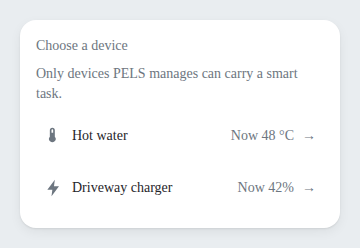 Step 1 — pick an eligible device.
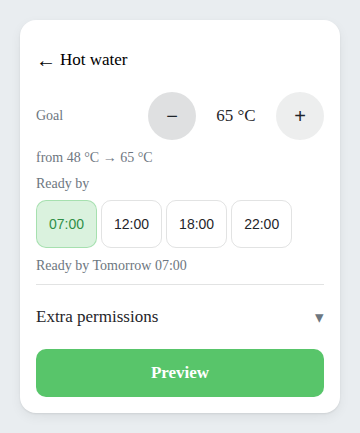 Step 2 — set the goal and a Ready by time (with optional Extra permissions).
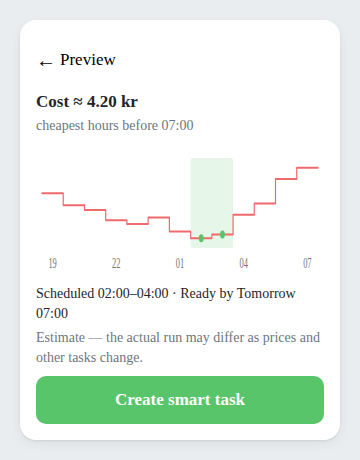 Step 3 — preview the cost and chosen hours, then confirm.
The preview is honest about whether the task can be created:
- Cannot finish warns that the goal may not be reached in time. Choose Edit task to adjust it or Create anyway to let PELS work toward the goal within your power limits.
- At risk means creation is allowed, but the task may need most of the available window.
- Satisfied means the device already meets the goal.
- If PELS cannot preview yet, the widget says which input is missing where possible, such as prices, a current reading, or price-aware planning.
This is the dashboard equivalent of the Add charging task / Add heating task Flow cards; see Smart Tasks for how a task behaves once it exists.
Held-back devices
Answers "why isn't this running — and can I let it now?"
The widget lists devices PELS is currently holding back (paused or limited), and how long each has waited. Tap Let it run now on any of them to create a short Smart task that gives the device leeway on today's budget and lets it take room from lower-priority devices. Your hard cap is never raised: the rescue only clears room underneath it, so a house already pressed against the cap may still make the device wait.
The one row without the button is a device that already has its own Smart task — that task is what will bring it back, and the row says so.
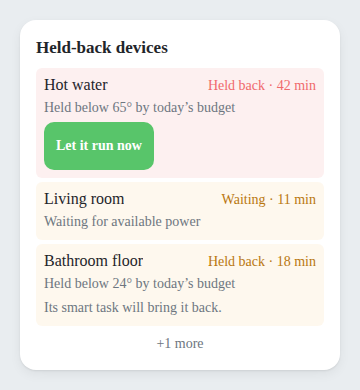 Step 1 — the held-back list. Every held-back device offers Let it run now.
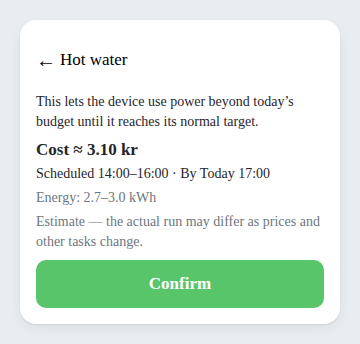 Step 2 — confirm the bounded, budget-exempt run.
When to use which
- Available power — a constant read on capacity pressure when you run heavy loads (an EV charger, a sauna, a wallbox heater).
- Electricity price — to see whether power is cheap or expensive now, and when that changes.
- Budget and Price — to see where today's energy and cost will land, and which hours are cheapest.
- Smart tasks — when you depend on smart-task deadlines; the widget turns red before you'd otherwise notice a miss.
- New smart task — to set a one-off ready-by goal without opening the app or building a Flow.
- Held-back devices — to understand why something is not running right now, and optionally let one device run now.
All widgets read from the same data PELS already maintains for the app itself, so adding them costs nothing in extra polling or device traffic.