
Cost-Saving Functions
PELS has several ways to reduce electricity cost. They are related, but they solve different problems.
Use this page when you are deciding whether to rely on power limiting, daily budget, price-based temperature shift, Smart tasks, or a Flow-based cheapest-hour setup.
Quick Comparison
| Function | Best for | What PELS changes | Main constraint |
|---|---|---|---|
| Power limiting | Staying below a grid tariff step or quarter-hour peak | Pauses, lowers, or resumes managed devices when the home gets close to the hard cap | Selected-period hard cap |
| Daily budget | Spending less and using less by pacing whole-home energy across the day | Gives more room to cheap or useful hours and less room to expensive hours | Daily kWh budget plus selected-period hard cap |
| Price-based temperature shift | Moving heating or cooling on devices with thermal mass | Works the device harder in cheap hours and lets it coast in expensive ones | Temperature comfort range |
| Smart tasks | Getting a specific device ready by a time | Plans the cheapest useful hours before the ready-by time | Target, ready-by time, prices, budget, and hard cap |
| Flow-booked hours | Custom "run for X cheap hours before Y" automation | Your Flow enables power-limit control only during selected hours | Your Flow logic plus hard cap |
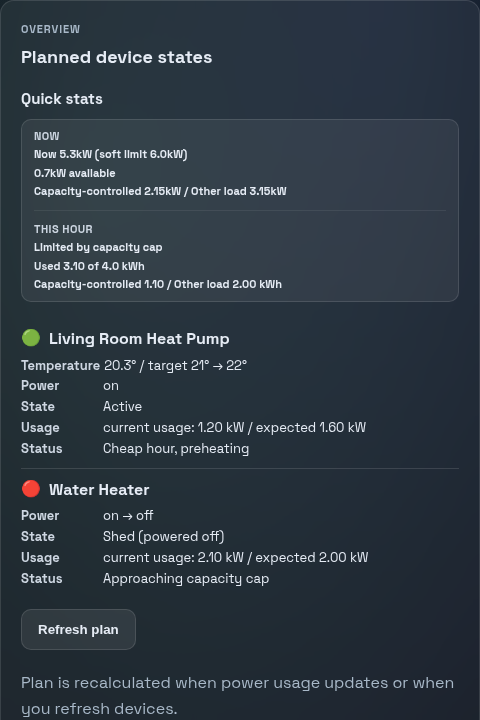 Figure 1. The Overview shows current power, safe pace, and which managed devices are running or limited.
Power Limiting
Power limiting is the core safety feature. PELS watches whole-home power and limits lower-priority devices before the selected capacity period is likely to exceed your configured hard cap.
Use it when:
- You want to stay inside a capacity tariff step.
- You have large devices that can pause briefly.
- You want PELS to decide which devices make room for higher-priority devices.
Typical devices:
- water heater
- panel heater or floor heating
- ventilation
- EV charger with current control
Power limiting is focused: it answers "Can this device run right now without pushing the home over the hard cap?" Layer daily budget, price-based temperature shift, or Smart tasks on top when you want cheap-hour behavior as well.
Daily Budget
Daily budget is a whole-home pacing layer. It spreads a daily kWh budget across the day and can use prices to give more room to cheaper hours.
Use it when:
- You want to spend less by letting cheap hours carry more of the day's load.
- You want to hold the whole home under a daily energy ceiling — to cap cost, cut waste, or stay disciplined.
- You do not care which device uses a cheap hour, as long as total usage shifts.
This is useful when a water heater, room heating, or an EV charger may all take advantage of the same cheap window. Daily budget does not reserve cheap hours for a specific device. It creates a better whole-home pace.
Price-Based Temperature Shift
Price-based temperature shift is per-device temperature behavior. PELS can work the device harder while power is cheap and let it coast while it is expensive. On a heater that means raising the target temperature while power is cheap and lowering it while it is expensive.
On a unit that is cooling, the same settings move the target the other way: the cheap-hour boost lowers it and the expensive-hour reduction raises it. PELS reads the device's own heating/cooling mode to decide, so an air conditioner and a water heater can both be price-aware without separate settings. A device that reports no mode, or reports auto, is treated as heating — if yours runs in auto and cools, turn its price response off.
"Use solar surplus" follows the device's mode the same way: while cooling it lowers the target to use the surplus. Smart tasks also measure progress in the device's reported direction: a cooling task continues until the room cools to its target. A device without a mode report, or in auto, is treated as heating. Power limiting knows the difference too: a device that reports its heating/cooling mode gets its own limited temperature when cooling.
Use it when:
- The device has thermal mass.
- Comfort can drift a little without becoming a problem.
- You want a simple setup without a ready-by time.
Good candidates are floor heating, water heaters, and rooms that stay warm for a while after heating stops. Poor candidates are rooms where the temperature must be exact at a specific time.
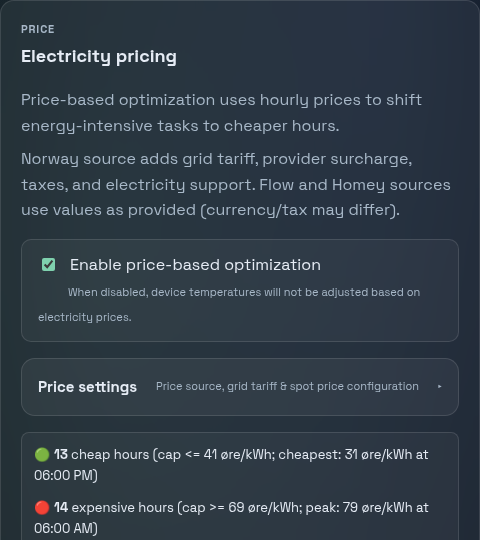 Figure 2. Price settings supply the prices behind price shift, daily budget, Smart tasks, and price-based Flows, and decide which hours count as cheap or expensive.
Smart Tasks
Smart tasks are for devices that need to reach a target before a specific time. PELS plans useful hours before the ready-by time, using prices and the device's learned or configured behavior.
Use them when:
- A car should reach a target battery level by morning.
- A water heater or room should be ready before a known time.
- You want the selected device, not just any household load, to use the best hours.
Smart tasks compose with the rest of PELS: the hard cap, priorities, and daily budget all keep working underneath the task, so a deadline lands without breaking the rest of the home.
Mode targets, boost settings, and Smart task targets can be different on purpose. See Different Targets Can Be Useful.
See Smart Tasks for the full guide, or Deadline Charging With State of Charge for the EV charging walkthrough.
Flow-Booked Hours
Flow-booked hours are useful when you want a simple "run for X cheap hours before Y" rule instead of a target-based task.
The pattern is:
- Keep the device managed by PELS.
- Turn Power-limit control off by default, so PELS does not start it just because there is available power.
- Use the Current price is one of the lowest before a time card to pick the cheapest hours in a window.
- Enable Power-limit control during those hours.
- Disable Power-limit control outside those hours.
This lets your Flow choose the time window while PELS still protects the hard cap during the hours when the device is allowed to run.
See Book Cheap Hours With Flows.
Which One Should I Use?
Start with power limiting. It protects the selected capacity period and gives the rest of the setup a safe base.
Add daily budget if you want whole-home pacing across the day.
Add price-based temperature shift for thermal devices that can preheat or coast through expensive hours.
Add Smart tasks when one specific device must be ready by a specific time.
Use Flow-booked hours when you want a fixed number of cheap hours and prefer to own the scheduling logic in Homey Flows.
How do I see what I saved?
The savings are real, but they show up as load landing in cheaper hours, not as a single "you saved X" number. To check that PELS is actually shifting your load:
- Budget → Hourly plan view overlays managed-device energy on the price line, so you can see flexible load sitting in the cheaper hours. See Daily Energy Budget.
- Usage tab shows hourly and daily totals split into managed and background use, so you can confirm when the home drew power.
- PELS Insights surfaces the current price level and daily-budget figures for dashboards and quick checks.
For a worked, illustrative example of the kroner involved, see the water heater and EV charging use cases. Remember a budget caps energy, not money — the saving comes from shifting load into cheap hours, not from the kWh number itself.