
Use Home, Away, Night and Vacation modes for energy behavior
Homey already knows how to detect presence, run schedules, react to alarm state, or trigger from a manual button. PELS does not try to replace any of that. PELS is the layer that turns the active mode into actual energy behavior for heating, hot water, EV charging and other managed devices.
The split:
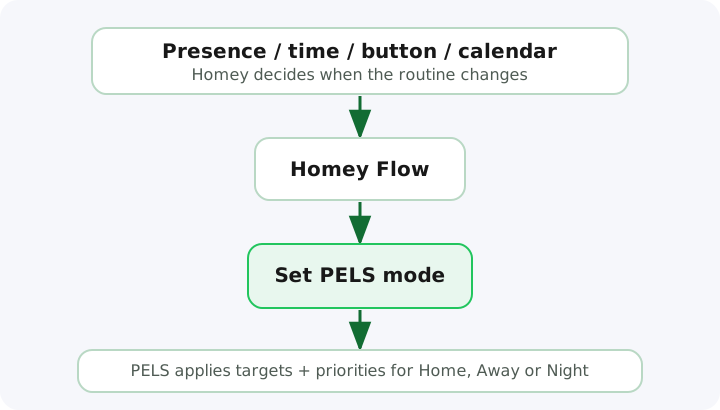
- Homey decides when the mode changes. Presence apps, schedules, virtual switches, alarm state, or anything else that can drive a Flow.
- PELS decides what the mode means. Per-mode comfort targets and per-mode device priorities for the loads PELS manages.
A mode is a name. PELS ships with Home as the default; you create the others (Away, Night, Vacation, or anything else that fits your household).
If you use meter areas, each area has its own mode names, targets, priorities, and current mode. A new area starts with its own Home mode. Choose the area under Showing on the Modes page. The Settings page then gives Main home and every area its own current-mode selector.
When this is useful
Use modes when the same managed devices should behave differently depending on the situation:
- comfort-first when people are home
- lower heating targets when the house is empty
- bedrooms prioritised over living areas at night
- minimum-safe targets during vacation
- one Flow to change the active mode, instead of one Flow per device per situation
What modes change
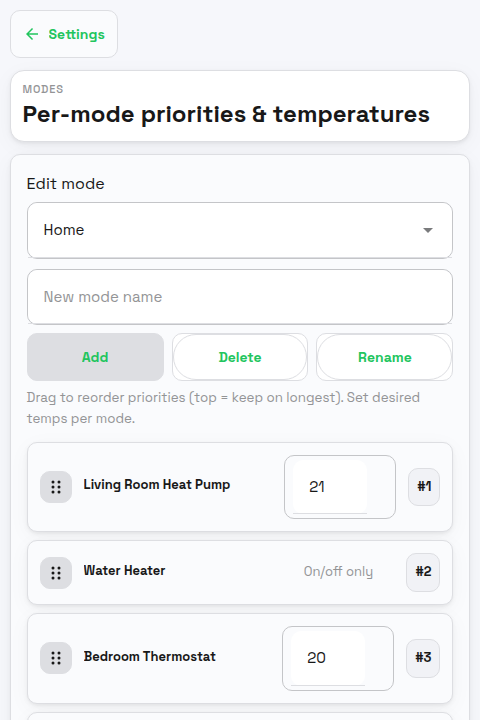
Two things vary per mode, per managed device:
| Setting | What it does |
|---|---|
| Desired temperature | The target temperature PELS aims for in this mode, for temperature-capable devices. |
| Priority | Lower number means higher priority. Higher-priority devices keep running longer and resume first when capacity opens up. |
That is the entire per-mode surface. Everything else — the selected-period hard cap, the daily energy budget, price control, resume cooldowns, Smart task deadlines — stays global and keeps running across all modes.
This is usually enough. Lowering heating targets in Away and dropping living-room priority during Night is what causes the behavior people want; PELS does the rest the same way it always does.
What modes do not change
Worth being explicit so you do not duplicate logic that PELS already runs:
- Hard cap — always protected. Modes cannot raise or relax it.
- Daily energy budget — global, runs the same in every mode.
- Price control — managed price-aware devices react to price the same way regardless of mode.
- Resume cooldowns — global timing rules; not per-mode.
- Smart tasks — ready-by deadlines run across modes.
Awaymode does not cancel a Smart task that needs the EV charged by morning.
Example: Home
Home is the comfort-first mode.
- Normal comfort temperatures.
- Living areas with reasonable priority so they stay on through capacity pressure.
- Hot water and EV charging keep their usual priority.
Example: Away
Away can be more flexible.
- Lower heating targets — enough to stay safe and warm-ish, not enough to maintain full comfort.
- Optional: lower hot water priority, depending on whether you want it ready when you return.
- The hard cap and daily budget keep doing their jobs.
Example: Night
Night is occupied, but the comfort focus shifts.
- Bedrooms higher priority than living areas.
- Lower targets in unused rooms.
- A Smart task can still pre-warm a room or charge the EV before morning.
Example: Vacation
Vacation is the strictest energy-saving mode.
- Minimum safe heating targets (above frost, comfortable enough for plants or pets).
- Low priority on flexible loads.
- Frost protection and Smart tasks still run.
Switching modes from Homey Flows
Anything that can trigger a Homey Flow can change the Main home's PELS mode. Use the Set operating mode action card. Meter-area modes are currently changed from the Settings page.
When the last person leaves:
When:  The last person leaves home
Then:  Set PELS operating mode to Away
When the first person comes home:
When:  The first person comes home
Then:  Set PELS operating mode to Home
On a schedule:
When:  Time is 23:00
And:   Operating mode is not Vacation
Then:  Set PELS operating mode to Night
From a virtual switch:
When:  Vacation switch turns on
Then:  Set PELS operating mode to Vacation

When:  Vacation switch turns off
Then:  Set PELS operating mode to Home
From alarm state:
When:  Alarm is armed away
Then:  Set PELS operating mode to Away
The trigger can be Homey's built-in presence, a presence app, a calendar, a button, an alarm system, or any combination. PELS does not need to know why the mode changed.
Reacting to mode changes from other Flows
PELS exposes an Operating mode changed to trigger and an Operating mode is... condition. Use them to drive things PELS does not manage — lights, blinds, music, dashboards, notifications, presence simulation.
Dim the lights when the house goes into Away:
When:  PELS operating mode changes to Away
Then:  Dim living-room lights to 20%, turn off office lights
Quiet the home at Night:
When:  PELS operating mode changes to Night
Then:  Lower blinds, dim hallway lights to 10%, turn off the TV
Pack-everything-down for Vacation:
When:  PELS operating mode changes to Vacation
Then:  Send notification, enable presence simulation, turn off non-essential plugs
This is the right place to react to mode changes for everything outside PELS's energy scope. The trigger fires once per change, so you get clean edges to hang lighting scenes, notifications or dashboards off.
One thing to avoid: do not use these Flows to also change the thermostats, heaters or relays that PELS already controls per mode. That is the most common source of fights between automations — two systems writing to the same device with different intent. Lights, blinds and notifications are fine; PELS does not touch them.
Avoid conflicting logic
The pattern that causes trouble:
Flow A sets a thermostat to 16 °C when away.
PELS sets the same thermostat to its Away target.
Flow B turns the thermostat off when prices are high.
PELS resumes it when capacity opens up.
Four systems writing to one device. The result is unpredictable and looks like a PELS bug.
The pattern that works:
Flow sets PELS operating mode to Away.
PELS applies the Away target and priority.
PELS handles price, capacity, and resume.
Pick one owner for each managed device's energy behavior. For devices PELS manages, let PELS be that owner.
Modes and Smart tasks
Modes describe normal behavior. Smart tasks describe specific goals with a deadline.
They compose:
Awaymode keeps heating relaxed — a Smart task can still warm a room before you arrive.Nightmode allows flexible timing — a Smart task can still require the EV to be ready by 07:00.Vacationmode keeps everything minimal — a Smart task scheduled for your return day can bring the house back to comfort before you walk in.
This is usually better than building one Flow per device per situation.
What you need
- The PELS modes you want to use, configured under Settings > Modes (target temperature and priority per device, per mode).
- One Homey Flow per trigger source (presence, schedule, button, alarm, …) that calls Set operating mode.
- Smart tasks for anything that must be ready by a specific time.